Everything FoxQuill does
The free trial and both plans have every feature on this page. If something you need is missing, ask for it on the Discord (opens in a new tab).
Write in scenes

-
Chapters, drafts, and scenes
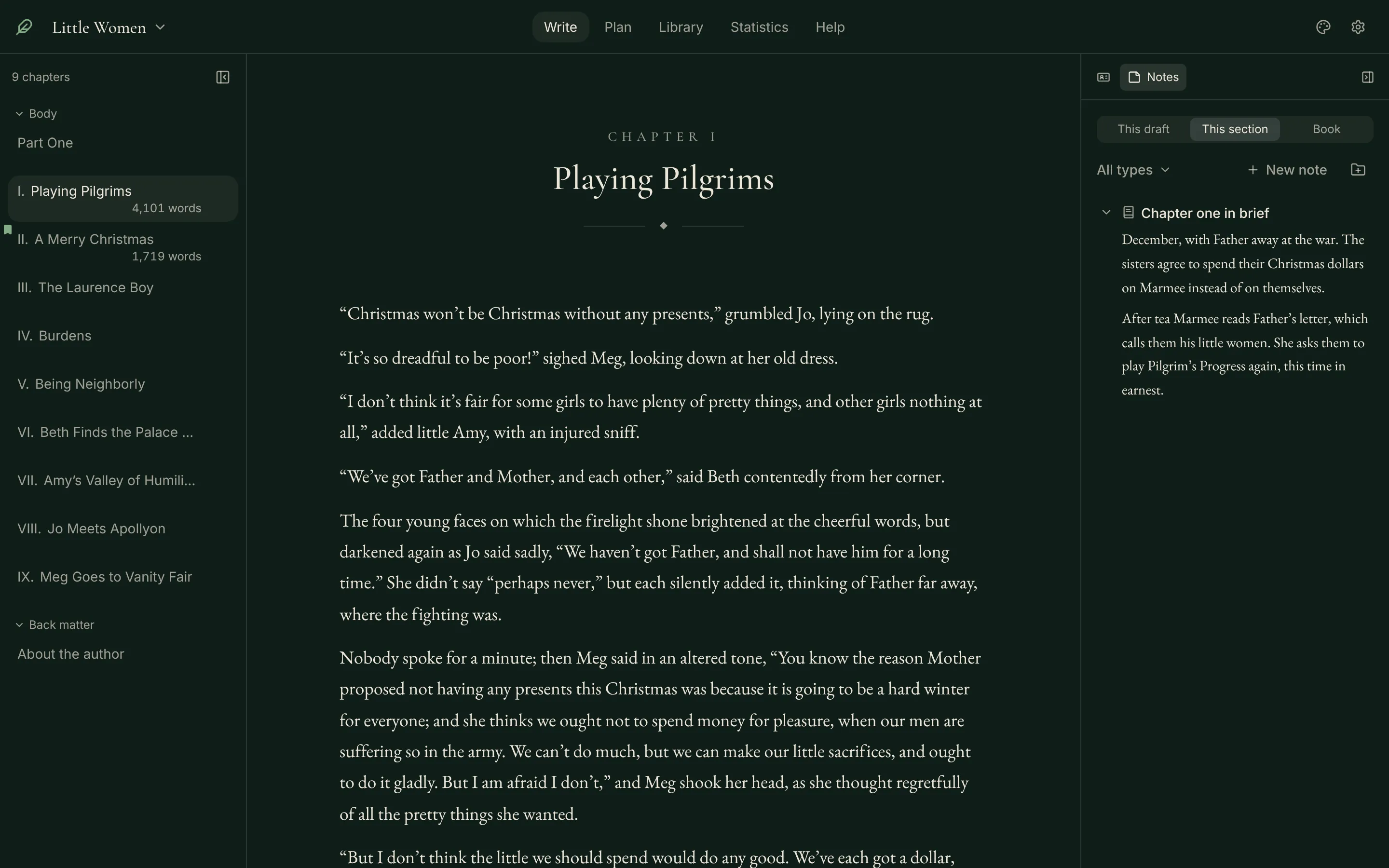
A book holds chapters, a chapter holds drafts, and a draft holds scenes. To rewrite a chapter, start a new draft and keep the old one. Drafts show once you turn on Show more tools in Settings.
-
A page that steps back
Once you start typing, the top bar, the sidebar, the side panel, and the bottom bar fade almost to nothing. Move the mouse and they come back.
-
Your books on a shelf
The book list shows each book with its cover, its word count, and when you last wrote in it. A book with no cover gets one drawn from its title, and a button on it draws another.
-
The chapter list
The sidebar lists every section of the book with its word count. Chapters number themselves in Roman numerals, and a new chapter with no title shows its number, such as “Chapter Two.” New chapter is one click. Drag a section to move it, and leave a chapter out of the numbering from its menu.
-
Labels for each scene
Give a scene a subtitle and a point of view. Only you see them, and they show once Show more tools is on. Each scene also keeps its own summary and notes.
-
Saved as you type
FoxQuill saves again when you click away. The bar at the bottom says whether the last change is saved, and shows the chapter’s running word count. Click the count for the whole book’s. A scene also keeps a copy of itself each time it changes by more than 50 words, up to 30 copies, and restoring one keeps the current version too.
-
Spell check
FoxQuill underlines a word it does not know as you type. Right-click it for suggestions, or choose Add to dictionary so it is left alone from then on. Pick the language in Settings, or turn spell check off there. English comes with FoxQuill. On Windows and Linux, any other language is downloaded once from Google, and nothing you write is sent. On a Mac, the Mac’s own spell checker does the work.
-
New scenes and commands
Press Enter on an empty line under another empty line to start a new scene, and Ctrl+Z right after joins the two back. Type / for the command list. /scene splits a scene at the cursor, /chapter starts a new chapter, /picture puts in a picture, and /card links a Library card. A card’s name stays plain text in the scene: rest the pointer on it to read the card’s summary, and Ctrl+click it (Cmd+click on a Mac) to open the card.
-
Paragraphs and drop caps
Set a book with indented paragraphs, as in a printed book, or with a gap between them. A drop cap can open each chapter, and it goes into PDF and EPUB files.
-
Set aside and flags
Set aside cuts the words you select and keeps them in the Kept tab, where Restore puts them back. Ctrl+Shift+X drops a flag with a note. Neither reaches an export or a word count.
-
The side panel
Open the side panel on the right of the page. Its tabs hold the cards your scene mentions, your notes, and the Kept tab. The dictionary, reader comments, and the AI add tabs when you use them.
-
Dictionary and thesaurus
Once Show more tools is on, right-click a word and choose Look up, or put the cursor in it and press Ctrl+Shift+D, for its definitions, synonyms, and antonyms. Click a synonym to swap it in. Add another dictionary, such as Merriam-Webster, in Settings.
-
Focus mode
Focus mode hides everything but your words and the bar at the bottom, which fades after three seconds of a still mouse. Press Escape to come back. In Settings, typewriter scrolling keeps the line you are typing in the middle, and line dimming fades every other line.
-
Writing sprints
Set the timer for 5, 10, 15, or 25 minutes, or any length you like. The bar counts your words as you go. Every finished sprint is saved, with your words per minute.
-
Four themes
Forest is deep green, Paper is light, Ink is a neutral dark gray, and Dusk is dark plum with a warm accent. One theme follows you across all your books and the book list, and a book can keep a theme of its own in Settings.
-
Background art
Choose a picture and FoxQuill sets it behind every panel, blurred and darkened, so it never sits over your text. The Pictures tab in the Library keeps your pictures, covers included, in one place.
Plan the book
-
The Plan tab
The Plan tab opens on a Corkboard, with a card for each scene, and after that on the view you used last in each book. A switch beside the title changes to the Outline or to Threads. + Chapter adds a chapter without going back to Write.
-
The Threads board
Lay out your plot threads across the chapters to see which chapters carry each one. The board shows in a book that has a thread, or once Show more tools is on.
-
Simple first, more when you want it
New installs start simple. Threads, the map, Pictures, drafts, Share, the dictionary, and a few more tools wait behind Settings > This app > Show more tools. A book keeps showing any tool it already uses.
-
Notes at three levels
Keep notes on the whole book, on one chapter, or on one scene. The Notes tab in the side panel switches between the book’s notes and this chapter’s.
-
Five kinds of note
Every note is a Note, an Outline, a Synopsis, a Research note, or a To-do. Filter the list by type, or add types of your own in Settings.
-
Outlines and to-do lists
An Outline note is a bullet list that nests as deep as you like, with Tab and Shift+Tab. A To-do note is a list of checkboxes.
-
A description and a style guide
Write down what the book is about and its genre. The style guide holds the tense, the person, and the voice you are after.
A card for everything

-
What a card holds
A card has a name, a category, a summary, and a body. It can also carry aliases, tags, and a picture.
-
Four categories to start
A new book starts with Character, Place, Thing, and Other. Add your own, rename them, and reorder them in Settings.
-
Fields of your own
Add fields to a card, such as eye color. When you export your cards as a spreadsheet, each field becomes a column.
-
Names spotted in your prose
FoxQuill finds a card’s name in your text. The Cards tab in the side panel lists every card the scene you are in mentions.
-
Cards you have not made yet
Under those, the side panel lists capitalized words that come up often and have no card. The plus button beside one makes a card for it.
-
Links between cards
Link one card to another, with a label if you like, such as “mother of.” Add links at the bottom of a card.
-
The relationship map
The map draws every linked card as a dot, colored by category, with a line for each link. A card with no links is left off. The map shows once a book has links, or once Show more tools is on.
Watch the book grow

-
Net words
FoxQuill takes the book’s length at the end of the day and subtracts its length at the start. A day spent cutting shows a negative number.
-
Writing sessions
A session starts on its own when you type and ends after 10 minutes without typing.
-
Today and your streak
The page opens on today and your goals, with the history below. Today shows your words, minutes, and sprints. The streak counts the days in a row that met your daily goal.
-
A year of writing days
The last year shows as a square for each day, darker on a day you wrote more. A bar chart shows your words a day for the last 30 days or the year.
-
Five kinds of goal
Set a goal for every day, week, month, or year, or for the whole book, from the Add a goal button. A goal can count for this book or for all your books, and a menu on it pauses or deletes it.
-
A target and a deadline
Give the book a target and, if you like, a deadline. FoxQuill shows what is left, what you need a day, and when you would finish at your pace over the last two weeks.
-
Progress in the bottom bar
With a daily goal set, a small ring in the bottom bar shows today’s progress. When you meet a goal, FoxQuill says so in the app and nowhere else.
Send it to a reader
-
Share by link
Send a chapter or the whole book. Your reader opens the link in any browser and needs no account and no copy of FoxQuill.
-
What the reader can do
Pick one for each link: read only, read and comment, or also suggest edits.
-
Suggested edits
A reader’s edits arrive as a new draft on that chapter, labeled with their name and the date. Read it beside your own and take what you want.
-
Comments in the side panel
Each comment sits on the paragraph it is about. FoxQuill checks for new ones when you open a book and every 15 minutes while it is open.
-
Replies both ways
Answer a comment from FoxQuill, and your reader answers on the link. Everyone on a link sees every comment, so give each reader their own link to keep them apart.
-
Encrypted links
FoxQuill encrypts the text on your computer, and the key travels only inside the link. The service that stores it cannot read it, and holds no name or email of yours.
-
An end date and a password
A link can stop working after 7 days, 30 days, or never. Add a password if you like, and send it in a separate message.
-
Update or stop sharing
Update the shared copy and the same link shows your newest text. Stop sharing a link and it stops working at once, and the copy stored for it is deleted.
Bring it in, send it out
-
Import a manuscript
Bring a book in from Word, EPUB, Markdown, or plain text, from the book list by button or by dropping a file on it. FoxQuill splits it into chapters and scenes at the headings, or at a line you choose, such as CHAPTER. A plain text file with lines such as “Chapter One” splits into chapters on its own.
-
Import from Scrivener
FoxQuill reads the binder from a zipped .scriv folder. Folders become chapters, documents become scenes, and synopsis cards become scene summaries.
-
A preview first
Before it imports anything, FoxQuill lists every chapter it found with its scenes, words, and first line. Then make a new book or add to the end of this one.
-
Compile the manuscript
Compile shows the preset, the format, and Export first, with the rest under More options. Export to Word, PDF, EPUB, Markdown, or plain text, pick the chapters and the scene separator, and choose whether to add chapter titles and a title page.
-
Standard manuscript format
For Word and PDF, the Standard manuscript preset sets 12 point type, double spacing, first-line indents, and page numbers, the way agents and editors ask for a manuscript.
-
A dated copy of the book
Settings > Files > Save a dated copy (PDF) saves the whole book with the date and a fingerprint of its text on the title page. Change one letter and the fingerprint changes, so you can show later that the words have not.
-
A chapter, notes, and cards
The section menu in the sidebar sends a single chapter straight out as a Word file. Export your notes as Markdown files in folders by type, and your Library cards as a spreadsheet.
On your own computer
-
Where your work lives
Your books, cards, notes, statistics, and pictures live in one folder, apart from the program, so updating FoxQuill cannot touch them. To copy your work, copy the folder.
-
A backup every day
Each day FoxQuill is open, it saves a copy of all your books in its backups folder, and the last 14 are kept. Before an update changes how your books are stored, it saves a full copy first.
-
Readable copies
With each day’s copy, FoxQuill also writes every book as a plain text file in the backups folder, ending with what you set aside. Open it in any editor. It holds the text only, not pictures, cards, or notes.
-
Backups you make
Save everything as one zip, or one book as a file of its own to move to another computer. Add a password to a backup if you like.
-
The Trash
A deleted book stays in the Trash for 30 days, so you can bring it back.
-
Encrypt my data
Encrypt the file your books are kept in. The key sits in your computer’s keychain, so you never type a password. With it on, no readable copies are written, because anyone could open them. The Mac version does not have it yet.
-
No account, no telemetry
There is nothing to sign up for. FoxQuill never reports what you write, how long you write, or that you opened it.
-
Works offline
FoxQuill needs no internet to write, plan, or export, and a word you looked up in the last 30 days still works. The monthly plan asks you to connect once after 14 days offline.
Only if you ask
-
Off when you install it
AI is off until you turn on Enable AI features in a book’s Settings. While it is off, FoxQuill shows no AI tools in that book, and nothing leaves your computer for an AI. The AI group shows once Show more tools is on.
-
What it can do
When it is on, it can continue a scene, rewrite or expand a passage you select, describe a moment, summarize scenes, fill in a card from the book, suggest names and plot beats, brainstorm, chat, give notes on a chapter, and run tools you write yourself. Nothing it writes goes into a scene until you choose to keep it.
-
You choose the model
Point FoxQuill at a program on your own computer, such as LM Studio or Ollama, or at a service you choose, with your own key. FoxQuill has no AI of its own and runs no AI server. It asks for no account, and Test connection checks the link.
-
Where your text goes
Once AI is on, only what you choose is sent, and only to the AI server you set. With a program on your own computer, your text stays on your machine. With a service, it goes to that service. FoxQuill’s own servers never see it.
-
What it can read
A scene is sent unless you hide it with the eye icon. Each card is sent always, only when mentioned, or never. A note is sent only when “The AI can read this” is checked, and Outline notes start checked. Statistics are never sent.
-
Never the whole book
FoxQuill sends a short brief: the book’s description and style guide, the cards that matter, the notes you let it read, summaries of earlier scenes, the end of the previous scene, and the scene you are in. Two tools read more: notes on a chapter read the whole chapter, and filling in a card reads every passage that names it.
Windows, Mac, and Linux

-
Windows
An ordinary installer for Windows 10 or 11. It installs for your account only, and you can choose the folder.
-
Mac, in beta
For macOS 13 or newer, with one download for Apple silicon and one for Intel. Until FoxQuill is signed by Apple, you allow it once, and updates download in your browser.
-
Linux
One AppImage file for Linux. Make it executable, then open it. It updates itself, as on Windows.
-
Three computers on one key
This is the same on both plans. To move to a new computer, deactivate the old one in Settings.
-
Updates ask first
FoxQuill shows what changed and lets you choose Update now or Later. On Windows and Linux, Update now installs the update and opens FoxQuill again. On a Mac the button says Download, and the new version downloads in your browser.
-
Major versions
Lifetime covers every FoxQuill 1 update. A new major version is never installed unless you choose it. The monthly plan always gets the newest.
-
A free 14-day trial
The first screen leads with Start writing, and there is nothing to pay or enter. A license key and the prices are one click away. When the trial ends, your books still open to read, search, and export.
Try it on your own book
The trial lasts 14 days and has everything on this page. When it ends, buy FoxQuill once or pay monthly, and your books are where you left them.